Your smartphone packs dozens of hidden features that most people never discover. These secret tools can boost your productivity, protect your privacy, and even help in emergencies.
This guide is perfect for iPhone and Android users who want to unlock their device’s full potential without downloading extra apps. You’ll learn about built-in emergency features that could save your life when you need help most, plus hidden camera tricks that rival professional photography apps.
We’ll also reveal secret text shortcuts that speed up your typing and advanced security controls that keep your personal data safe from prying eyes.
Emergency Features That Could Save Your Life
Activate Emergency SOS with Button Combinations
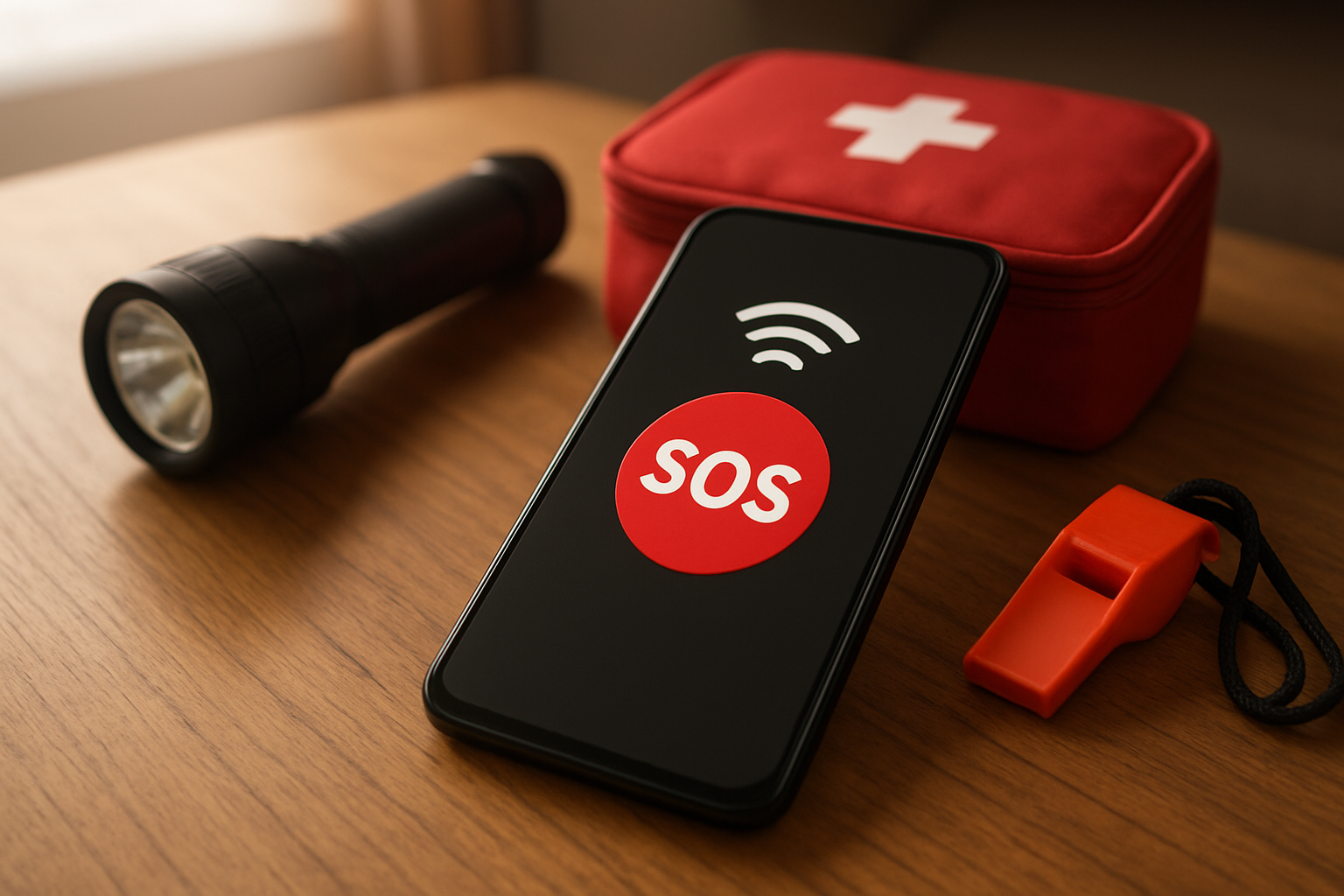
Your smartphone packs some serious emergency muscle that most people never discover. Both iPhones and Android phones have built-in panic buttons that can summon help faster than manually dialing 911. On iPhones, rapidly press the side button five times, or hold the side button and volume button simultaneously for a few seconds. Your phone will automatically call emergency services and notify your emergency contacts with your location.
Android users can activate Emergency SOS by pressing the power button five times quickly. Samsung Galaxy phones offer an even smoother option – just press the power button three times. These shortcuts work even when your screen is locked, making them accessible during high-stress situations when fine motor skills might be compromised.
The beauty of these features lies in their discreet nature. You can activate them without looking at your screen or navigating through menus, perfect for situations where you need help but can’t openly use your phone.
Send Location Data to Emergency Contacts Automatically
When you trigger Emergency SOS, your phone becomes a digital lifeline that shares your exact location with people who matter most. The system automatically sends GPS coordinates, address information, and even altitude data to your designated emergency contacts via text message.
Your phone continues sharing location updates for a predetermined period, creating a digital breadcrumb trail that emergency responders can follow. This feature works even in areas with poor cell coverage, as phones can triangulate position using available cell towers and Wi-Fi networks.
Setting up this system requires adding emergency contacts in your phone’s settings. Choose people who are likely to respond quickly and know how to contact authorities if needed. Your phone can store multiple emergency contacts, ensuring someone will receive your distress signal.
Display Critical Medical Information on Locked Screen
Medical emergencies often leave people unable to communicate vital health information. Your phone can bridge this gap by displaying critical medical data on the lock screen, accessible to first responders without unlocking the device.
The Medical ID feature stores essential information like blood type, allergies, medications, emergency contacts, and existing medical conditions. Paramedics and emergency room staff can access this information by tapping “Emergency” on the lock screen, then selecting “Medical ID.”
This feature proves invaluable for people with conditions like diabetes, severe allergies, or heart problems. Even healthy individuals benefit from having emergency contact information readily available. Setting up Medical ID takes just a few minutes but could make the difference between life and death in a critical situation.
Include information about medications you take regularly, as drug interactions can be deadly in emergency treatments. Also note any medical devices like pacemakers or insulin pumps that emergency responders should know about.
Use Flashlight as Morse Code Distress Signal
Your phone’s LED flashlight doubles as a distress beacon capable of transmitting international rescue signals. The universal SOS signal in Morse code is three short flashes, three long flashes, then three short flashes again (dot-dot-dot, dash-dash-dash, dot-dot-dot).
While most flashlight apps offer simple on/off functionality, several specialized apps can automatically flash SOS patterns, removing the guesswork during stressful situations. Some phones even include this feature in their built-in flashlight controls.
The SOS light signal carries for miles in dark conditions and is recognized worldwide by search and rescue teams, pilots, and maritime personnel. This makes it particularly valuable for outdoor emergencies, power outages, or situations where cell service is unavailable but you need to attract attention from a distance.
For maximum effectiveness, find an elevated position and aim the light toward the horizon or sky. The rhythmic pattern of SOS stands out from random light sources, making it more likely to be recognized as a distress signal by potential rescuers.
Hidden Camera and Photography Tools
Take photos using volume buttons as shutter
Your phone’s volume buttons can work as camera shutters, making photography much more comfortable and stable. Instead of tapping that small on-screen button and potentially shaking your device, simply press either volume up or down to capture the perfect shot. This feature works across most smartphones, including iPhones and Android devices.
The volume button trick becomes especially useful for selfies. You can hold your phone more naturally and press the volume button with your thumb or index finger without reaching across the screen. This reduces camera shake and helps you maintain better composition.
For even more flexibility, you can use your phone’s wired earbuds as a remote shutter. When your earbuds are connected, pressing the volume buttons on the headphone cord will trigger the camera. This turns your earbuds into a makeshift remote control, perfect for group photos or shots where you need to be further from your phone.
Some Android phones also support using the power button as a camera trigger when the camera app is open. Check your camera settings to enable this option if it’s available on your device.
Scan documents directly with built-in scanner
Modern smartphones come with powerful document scanning capabilities built right into their camera apps. You don’t need to download separate scanning apps when your phone already has professional-grade document scanning features hidden in plain sight.
On iPhones, the Notes app includes a document scanner that automatically detects document edges, corrects perspective, and enhances text readability. Simply open Notes, create a new note, tap the camera icon, and select “Scan Documents.” The camera will automatically detect when you’re pointing at a document and capture it with enhanced clarity.
Android phones often include Google Drive’s document scanner, which works similarly. Open Google Drive, tap the plus button, and select “Scan.” The camera will detect document boundaries and apply automatic enhancements to make text crisp and readable.
These built-in scanners can handle multiple pages in sequence, creating complete PDF documents directly on your phone. They automatically adjust for lighting conditions and can even convert scanned text into searchable, editable formats using optical character recognition (OCR).
Record videos while phone appears locked
Your phone can secretly record videos even when the screen appears to be off or locked, which can be valuable for security purposes or capturing unexpected moments. This feature requires some setup but provides discreet recording capabilities when needed.
On many Android phones, you can enable “Quick launch camera” settings that allow double-tapping the power button to instantly start recording, even from a locked screen. Some devices also support voice commands like “OK Google, start recording” that work even when the screen is off.
iPhone users can set up the Control Center to include screen recording and camera shortcuts that work from the lock screen. You can also use Shortcuts app to create voice-activated recording commands that work hands-free.
For enhanced security recording, some phones support “panic mode” recording where pressing specific button combinations will start recording while keeping the screen black. This feature varies by manufacturer and may require enabling in security or emergency settings.
Always remember that recording others without consent may violate privacy laws in your area, so use these features responsibly and in compliance with local regulations.
Secret Text and Communication Shortcuts
Schedule messages to send at specific times
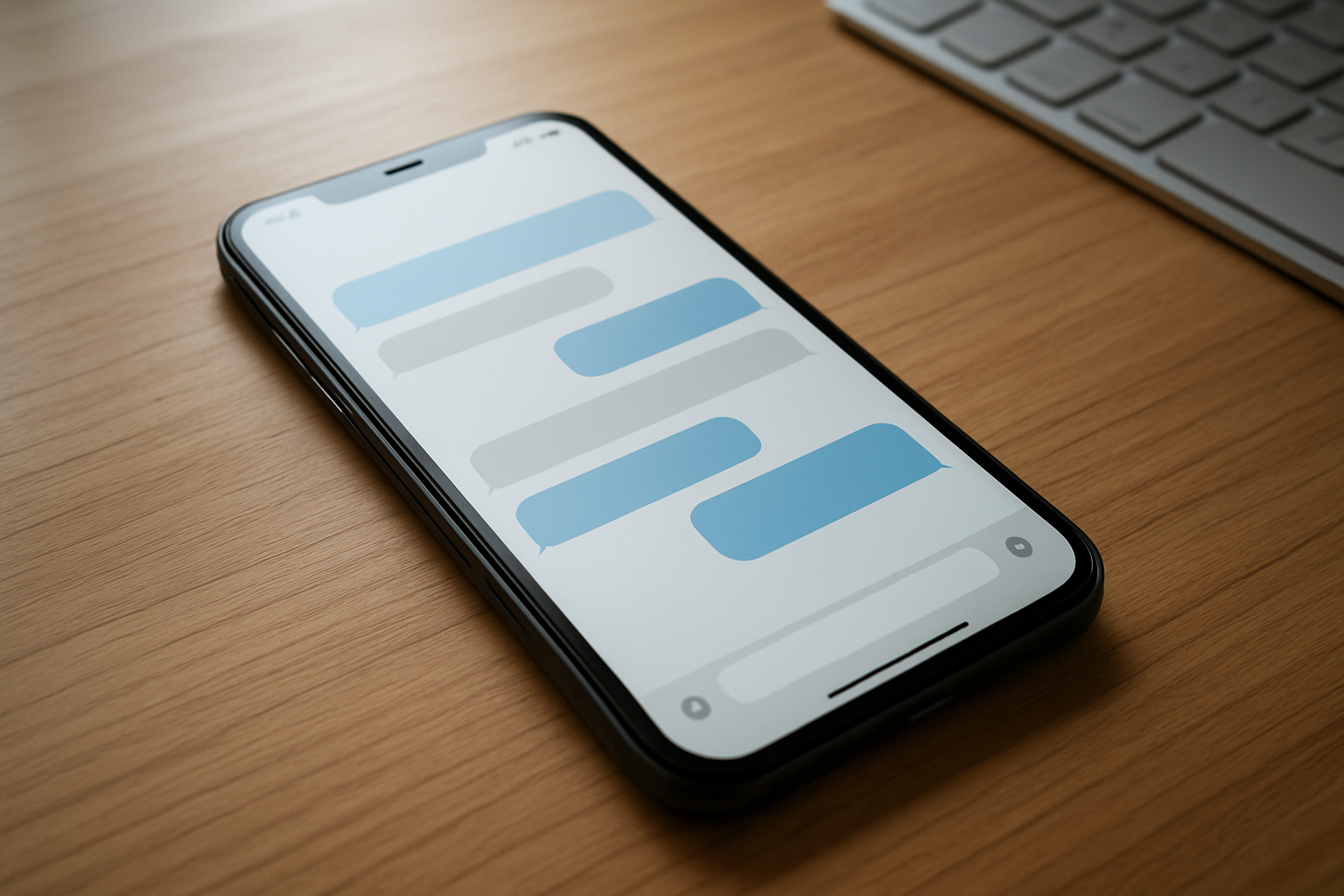
Your phone can become a personal assistant that never forgets to send important messages. Both iPhone and Android devices offer native scheduling features that let you compose texts and have them delivered at predetermined times. On iPhone, simply long-press the send button after typing your message and select “Send Later.” Android users can find similar functionality by tapping and holding the send button in Google Messages.
This feature proves invaluable for birthday wishes, appointment reminders, or messages to different time zones. You can write heartfelt birthday messages weeks in advance and schedule them for midnight on the special day. Business professionals often use this to send follow-up messages during appropriate hours, even when working late nights or early mornings.
Create custom vibration patterns for contacts
Beyond standard ringtones, your phone allows you to assign unique vibration patterns to specific contacts. This tactile identification system works perfectly when your phone is on silent mode or in noisy environments. iPhone users can access this through Settings > Sounds & Haptics > Ringtone > Vibration > Create New Vibration. Android users find similar options in their Contacts app under individual contact settings.
Popular patterns include Morse code sequences for tech enthusiasts, rhythmic beats matching favorite songs, or simple long-short combinations that feel natural. Many people assign gentle patterns to family members and more urgent vibrations to work contacts or emergency services.
Use voice-to-text in multiple languages simultaneously
Modern smartphones support multilingual dictation without requiring language switching between conversations. Both iOS and Android can recognize when you switch languages mid-sentence and automatically adjust transcription accordingly. This feature activates through your keyboard’s microphone button and works seamlessly across messaging apps.
Bilingual speakers find this particularly useful for family conversations mixing languages or international business communications. The technology recognizes context clues and common code-switching patterns, making it surprisingly accurate even when alternating between languages within the same sentence.
Send invisible ink messages that fade after reading
iMessage includes a hidden “invisible ink” effect that conceals message content until recipients swipe to reveal text, which then fades again after viewing. Access this by typing your message, force-pressing the send button, selecting “Screen” effects, and choosing “Invisible Ink.” This creates an element of surprise and privacy for sensitive information.
While primarily designed for fun interactions, this feature serves practical purposes for sharing temporary passwords, surprise party details, or confidential information that shouldn’t remain visible on screens. The message requires deliberate action to view, preventing accidental exposure during casual phone browsing.
Advanced Security and Privacy Controls
Set Up App-Specific Passwords and Restrictions
Your phone contains powerful security tools that most people never explore. App-specific passwords create unique access codes for individual applications, completely separate from your main device password. This means if someone discovers your social media login, they can’t automatically access your banking apps or email.
Most smartphones allow you to set different authentication levels for different app categories. You can require fingerprint verification for financial apps while using simpler passwords for games or entertainment apps. This layered approach protects your most sensitive data without making every interaction cumbersome.
App restrictions go beyond simple passwords. You can set time-based limitations, preventing certain apps from opening during work hours or after bedtime. Location-based restrictions can disable social media apps while you’re at the office or block shopping apps when you’re near your favorite stores.
Parent controls aren’t just for kids either. Many adults use these features to limit their own access to distracting apps during focused work periods. You can also restrict in-app purchases, prevent app installations without additional verification, and block access to specific websites or content types.
Hide Sensitive Photos in Secure Folder
Every major smartphone platform includes hidden photo storage that operates like a digital safe. These secure folders require separate authentication and don’t appear in your regular photo gallery or cloud backups. Your private photos remain completely invisible during casual phone browsing.
Setting up a secure folder typically involves enabling the feature in your privacy settings and choosing a different unlock method from your main screen lock. Many phones support multiple authentication types simultaneously – you might use your regular fingerprint for daily access but require a separate PIN for the secure folder.
These protected spaces aren’t limited to photos. You can store documents, videos, voice recordings, and even entire apps within secure folders. Some phones allow you to run duplicate versions of social media apps – one public version and one completely private version with different accounts and content.
The secure folder remains encrypted even during device backups. If you restore your phone or switch to a new device, you’ll need to manually set up the secure folder again and restore its contents separately. This extra step provides additional protection but requires planning ahead for device transfers.
Track and Remotely Wipe Your Device if Stolen
Built-in device tracking extends far beyond simple location services. Modern phones can record detailed location histories, capture photos using front and rear cameras when someone enters incorrect passwords, and even record audio from the surrounding environment.
Remote wipe capabilities let you completely erase your device from any web browser, even if the phone is turned off or disconnected from your usual network. The wipe command gets stored and executes automatically once the device connects to any internet source. This ensures your personal data can’t be accessed even if thieves bypass your lock screen.
Many phones can display custom messages on the lock screen when marked as lost, showing contact information for good samaritans who find your device. You can also trigger loud alarms that override volume settings, making the phone ring even when set to silent mode.
Advanced tracking features include geofencing alerts that notify you when your device leaves or enters specific areas. This proves especially useful for keeping track of devices left in cars, offices, or other regular locations. Some phones can automatically enable tracking when they detect unusual movement patterns or when disconnected from trusted networks like your home WiFi.
Power User Navigation and Control Tricks
Control your phone entirely through voice commands
Your phone’s voice assistant can do way more than just set timers and play music. Most people barely scratch the surface of what’s possible with voice control. You can navigate your entire phone, open specific apps, send detailed messages, and even adjust complex settings without touching the screen once.
Try saying “Open Settings, then Privacy” or “Turn on airplane mode” to see how granular the control gets. Voice commands work for launching specific functions within apps too – “Take a selfie,” “Start a workout,” or “Call Mom on speakerphone” all work seamlessly. The real magic happens when you create custom voice shortcuts that chain multiple actions together. Set up a “bedtime” command that dims your lights, sets your alarm, enables Do Not Disturb, and plays white noise all at once.
For accessibility, this feature becomes absolutely game-changing. Voice control can handle everything from scrolling and typing to selecting tiny interface elements that would be difficult to tap precisely.
Create custom gestures for instant app access
Hidden in your phone’s accessibility settings lies a powerful gesture system that most users never discover. These custom gestures let you draw patterns on your screen to instantly launch apps, toggle settings, or perform complex actions.
You can assign a simple “C” gesture to open your camera, draw a lightning bolt to toggle your flashlight, or trace an “M” to open your music app. The gestures work from anywhere – even when your screen is off on some devices. More advanced users create gestures that combine multiple actions, like drawing a dollar sign to open their banking app and navigate directly to account balances.
The system learns your drawing style, so your gestures don’t need to be perfect. A rough circle can launch your maps app, while a quick zigzag might open your notes. Some phones support multi-finger gestures too – try using three fingers to take screenshots or four fingers to switch between recent apps.
Use your phone as wireless mouse and keyboard
Your smartphone can transform into a powerful computer peripheral without any special hardware. Both Android and iPhone have built-in features that let you control computers, smart TVs, and tablets remotely.
Most phones include a hidden trackpad mode that mirrors your finger movements to control an on-screen cursor. The virtual keyboard appears automatically when you need to type, and you can even use voice-to-text for longer documents. Gaming becomes more interesting when you can use your phone’s gyroscope as a motion controller for compatible games.
The range extends beyond just cursor control. Your phone’s volume buttons can control presentation slides, the camera button can act as a remote shutter for video calls, and you can even use pinch gestures to zoom on connected displays. Some phones support multiple simultaneous connections, letting you switch between controlling your laptop and smart TV seamlessly.
Mirror your screen to any TV without cables
Screen mirroring works with most modern TVs and streaming devices, even if they’re different brands than your phone. The technology uses your existing Wi-Fi network to create a direct connection between devices.
Look for “Cast,” “AirPlay,” or “Screen Mirroring” in your phone’s quick settings panel or sharing menu. Your phone will automatically detect compatible displays on the same network. The connection supports full resolution video, audio, and even responds to touch inputs on your phone while mirrored.
Beyond simple mirroring, you can use extended desktop modes where your phone acts as a trackpad while displaying different content on the TV. This makes presentations more dynamic and turns your TV into a secondary monitor for productivity tasks. Some phones even support reverse mirroring, letting you control smart TV interfaces directly from your phone’s screen.
Quality stays surprisingly high even with intensive content like games or video streaming, thanks to modern compression algorithms that adapt to your network conditions automatically.
Hidden Productivity and Organization Features
Transform Your Phone Into Digital Magnifying Glass
Your smartphone comes packed with accessibility features that double as incredibly useful tools for everyday situations. The built-in magnifier turns your phone’s camera into a powerful digital magnifying glass that can zoom up to 15x magnification on most devices.
For iPhone users:
- Go to Settings > Accessibility > Magnifier
- Toggle on the feature and add it to Control Center
- Triple-tap the side button for quick access
For Android users:
- Navigate to Settings > Accessibility > Magnification
- Enable Camera magnification
- Use the accessibility shortcut or open through the camera app
This feature shines when you’re trying to read tiny print on medicine bottles, examining jewelry hallmarks, or checking expiration dates in dim lighting. The digital zoom maintains clarity better than squinting, and you can adjust brightness and contrast for optimal viewing. Many people discover this accidentally but end up using it daily for everything from reading restaurant menus with small fonts to inspecting plants in their garden.
Measure Objects and Distances Using Camera
Your phone’s camera can accurately measure real-world objects without any additional tools. This augmented reality feature uses advanced computer vision to calculate dimensions with surprising precision.
iPhone’s Measure App:
- Pre-installed on iOS 12 and later
- Point your camera at any object’s edge
- Tap to set starting point, drag to endpoint
- Measure multiple dimensions simultaneously
- Save measurements with photos for reference
Android Alternatives:
- Google’s Measure app (discontinued but still functional on some devices)
- Third-party apps like Ruler, CamToPlan, or AR Ruler
- Some Samsung devices include built-in measuring tools in the camera app
The accuracy typically ranges within 1-2% for objects between 6 inches and 10 feet away. You can measure furniture before buying it online, check if packages will fit through doorways, or determine room dimensions for renovation projects. Real estate agents use this feature constantly, and it’s incredibly handy for online marketplace listings where buyers want exact measurements.
Create Automated Routines Based on Time and Location
Smart automation transforms your phone from a passive device into an intelligent assistant that anticipates your needs. Both iOS Shortcuts and Android’s automation features can trigger complex actions based on your daily patterns.
Location-Based Automations:
- Automatically switch to silent mode when entering your workplace
- Turn on Wi-Fi and open your shopping list when arriving at the grocery store
- Send “I’m home” texts to family members when you reach your driveway
- Activate Do Not Disturb mode during your commute hours
Time-Based Routines:
- Set your phone to automatically enable blue light filter at sunset
- Schedule daily backup of photos to cloud storage
- Turn on airplane mode during your regular sleep hours
- Send good morning texts to your partner at the same time each day
iOS Shortcuts Setup:
- Open the Shortcuts app
- Create new automation
- Choose triggers (time, location, app usage)
- Add actions like sending messages, adjusting settings, or opening apps
Android Automation:
- Use Google Assistant Routines or third-party apps like Tasker
- Set up “If This Then That” (IFTTT) integrations
- Create custom voice commands for complex actions
These automations save countless micro-decisions throughout your day. Your phone learns your patterns and starts handling routine tasks without conscious effort, freeing up mental energy for more important decisions.
Entertainment and Multimedia Secrets
Access hidden games built into your operating system
Your smartphone is hiding entire games right in plain sight. Android users can unlock a secret game by navigating to Settings > About Phone and repeatedly tapping the Android version number. This reveals a hidden Easter egg game that changes with each Android version – from a flappy bird clone to puzzle games and even full arcade-style experiences.
iPhone users aren’t left out either. The Calculator app becomes a scientific calculator when you rotate your phone horizontally, but here’s the real secret: create a folder with exactly 9 apps, then drag additional apps into it while rapidly switching to another screen. This glitch can unlock access to developer tools and hidden features.
Windows Phone users (yes, they still exist) can access classic Microsoft games by typing specific codes in the search bar. These games run natively and don’t require internet connection, making them perfect time-killers during flights or commutes.
Even your phone’s diagnostic menus contain hidden gems. Dial *#*#4636#*#* on most Android devices to access battery statistics that double as simple puzzle games to test touch responsiveness.
Control smart home devices with secret menu options
Your phone’s accessibility settings contain powerful smart home controls that most users never discover. Android’s Switch Access feature, found deep in Settings > Accessibility, can be programmed to control any Bluetooth or Wi-Fi connected device with custom gestures.
The real magic happens in your phone’s developer options. Enable USB debugging, then use apps like Tasker to create complex automation chains that bypass manufacturer restrictions. You can control Philips Hue lights, Nest thermostats, and Ring doorbells with custom voice commands that aren’t available through standard apps.
iPhone users can leverage the Shortcuts app’s hidden NFC triggers. Program NFC tags with specific commands, then place them around your house. Tap your phone to a bedside tag to dim all lights, lock doors, and set your alarm simultaneously.
Your phone’s camera can also serve as a universal remote. Point it at infrared devices while using hidden IR blaster apps (on supported devices) or leverage the flashlight’s strobe patterns to communicate with smart switches that respond to light frequency changes.
Stream audio to multiple devices simultaneously
Most people don’t realize their phones can become powerful audio distribution centers. Android’s “Separate App Sound” feature, buried in Settings > Sounds and Vibration > Advanced, lets you route different apps to different audio outputs simultaneously.
Samsung and LG phones include dual audio capabilities that stream to two Bluetooth devices at once, but there’s a hidden trick to extend this further. Enable developer options and adjust the Bluetooth codec settings to A2DP hardware offloading – this reduces latency and allows for additional simultaneous connections.
iPhone users can create audio groups through AirPlay 2, but the secret lies in the Control Center’s force-touch options. Press and hold the audio card to reveal additional streaming destinations, including speaker groups that aren’t visible in the standard music app interface.
The Chrome browser on both platforms supports casting to multiple Chromecast devices simultaneously through hidden flags. Type chrome://flags in your mobile browser and enable “Cast media route provider” for expanded streaming options that bypass single-device limitations.
For ultimate audio control, your phone’s equalizer settings often include a “spatial audio” option that creates virtual surround sound effects, making any connected speaker system sound like a premium multi-room setup without additional hardware costs.
Your phone is packed with incredible features hiding in plain sight. From emergency tools that could literally save your life to secret camera tricks that’ll make your photos shine, these hidden gems can transform how you use your device every day. The advanced security settings give you way more control over your privacy than most people realize, while those sneaky navigation shortcuts can cut your screen time in half.
Don’t let these powerful features collect digital dust. Take a few minutes today to explore your phone’s settings and try out some of these tricks. Start with the emergency features – you never know when you might need them. Your phone is basically a mini computer in your pocket, so why not unlock its full potential? Your future self will thank you for taking the time to master these game-changing tools.

Saurabh Kumar is the founder of SaurabhOrbit.com, a hub for tech news, digital marketing insights, and expert blogging advice. With a deep passion for technology and digital strategies, Saurabh simplifies complex trends into actionable insights for readers looking to stay ahead in the digital world. My mission is to empower entrepreneurs, tech enthusiasts, and marketers with the latest tools and knowledge to thrive in the online space.